
Introduction: Why WooCommerce Migration Is Riskier Than Normal WordPress Migration
Migrating a standard WordPress website is mostly about pages, media, and SEO. Migrating a WooCommerce store, however, introduces an entirely different level of complexity.
A WooCommerce site handles:
- Live orders
- Payments in real time
- Customer accounts
- Inventory updates
- Order statuses
- Email notifications
- Taxes and shipping logic
A single mistake during migration can lead to:
- Lost or missing orders
- Duplicate orders
- Payment mismatches
- Inventory corruption
- Customer login failures
- Revenue loss and legal disputes
This guide explains exactly how to migrate a WooCommerce website without losing a single order, using professional zero-downtime techniques.
Why Orders Get Lost During WooCommerce Migration
Understanding failure points is the first step to preventing them.
Common Order-Loss Scenarios
- DNS switched while customers are checking out
- Database copied only once (no final sync)
- Orders placed during migration window
- Payment gateways not tested properly
- Webhooks broken after migration
- Cron jobs not running
- Cache serving stale checkout pages
Key insight:
WooCommerce migration is not a one-time copy process—it is a synchronized transition.
Core Principles of Safe WooCommerce Migration
Before touching any tools, lock these principles:
- Old store remains live until migration is verified
- Orders must be synced right before DNS switch
- Checkout & payment testing is mandatory
- Emails and webhooks must be verified
- Rollback must be possible instantly
If any of these are missing, order loss becomes likely.
Migration Architecture for WooCommerce (Professional Flow)

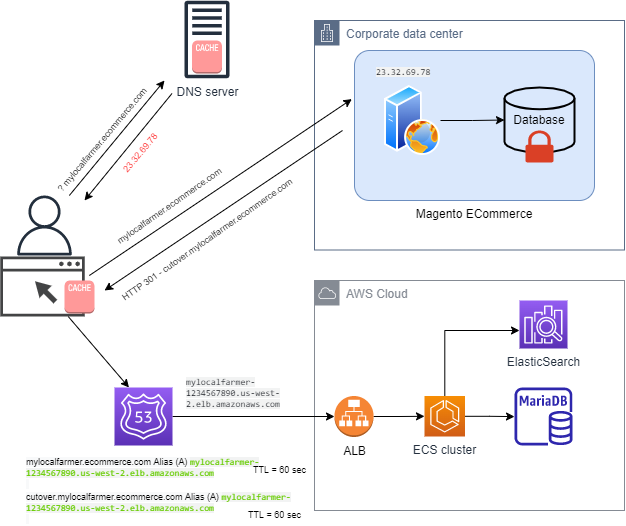
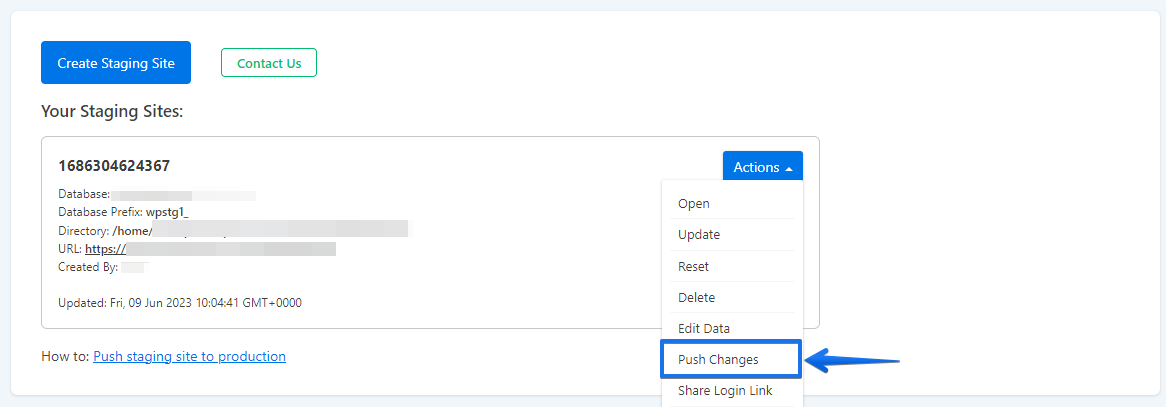
Professional flow:
Live Store → Cloud/Staging Store → Testing → Final Order Sync → DNS Switch → Monitoring
This ensures business continuity.
Step 1: Pre-Migration WooCommerce Audit (Mandatory)
Store Audit Checklist
- WooCommerce version
- WordPress version
- Active theme & child theme
- Payment gateways used
- Shipping & tax rules
- Currency & localization
- Active plugins
- Order volume per day
- Cron jobs & webhooks
- Email setup
- Custom code or integrations
Document everything.
This audit becomes your migration control sheet.
Step 2: Decide the Right Migration Strategy
Strategy A: Low-Order-Volume Stores
- Short maintenance window (5–10 minutes)
- Final database sync
- DNS switch
Strategy B: Medium to High Order Volume (Recommended)
- Zero-downtime migration
- Parallel order acceptance
- Final incremental sync
- Controlled DNS cutover
For most businesses, Strategy B is the safest choice.
Step 3: Prepare the New Server or Hosting Environment
WooCommerce is resource-intensive.
Recommended Minimum Configuration
- CPU: 2–4 vCPU
- RAM: 4 GB+
- SSD storage
- PHP 8.x (as compatible)
- MariaDB/MySQL optimized
- Object caching support
- HTTPS enabled
Never migrate WooCommerce to a weaker environment.
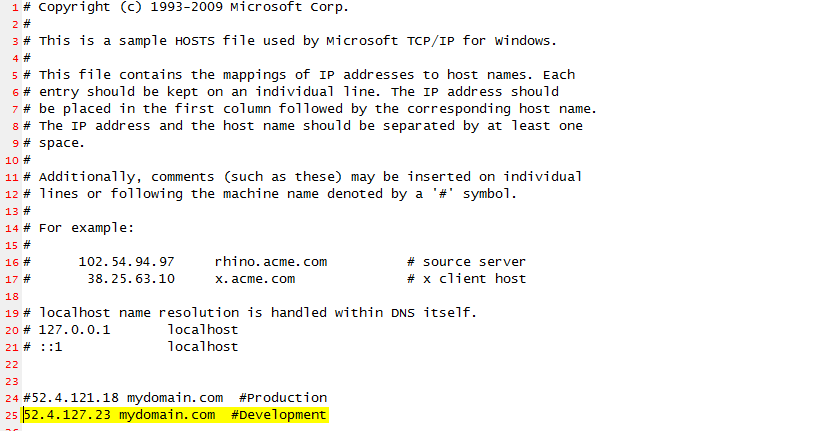
Step 4: Create a WooCommerce Staging Environment

Staging Best Practices
- Use hosts file mapping
- Keep production URLs unchanged
- Disable search engine indexing
- Block real payments temporarily
Staging must behave exactly like production—except for payments.
Step 5: Initial File Migration (Safe Phase)
What to Migrate
- WordPress core files
- wp-content (themes, plugins, uploads)
- Custom scripts
- Configuration files (reference only)
Use:
- Rsync (preferred)
- SCP
- SFTP
Avoid copying cache directories initially.
Step 6: Initial Database Migration (Phase One)


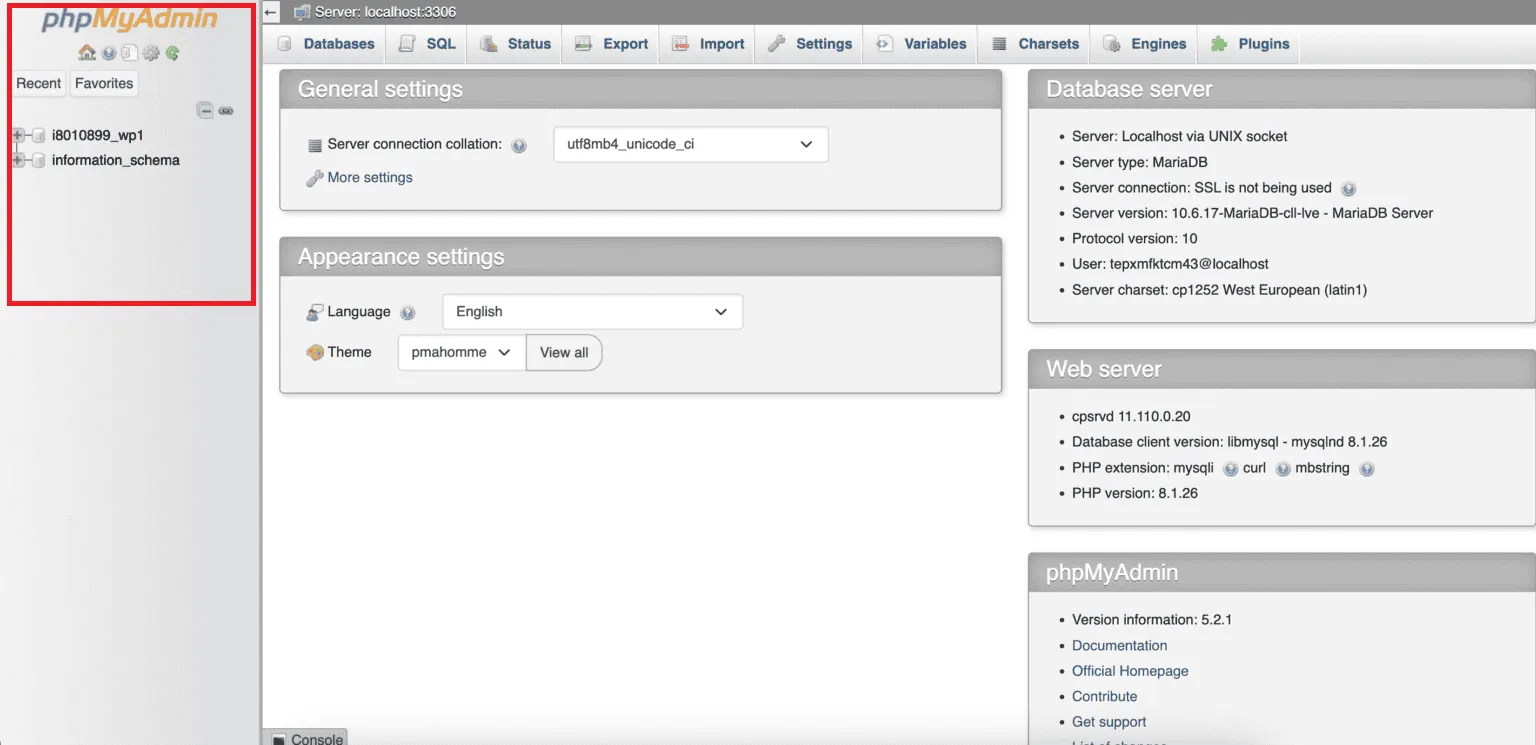
Database Tables That Matter Most
- wp_posts (orders are stored here)
- wp_postmeta
- wp_woocommerce_order_items
- wp_woocommerce_order_itemmeta
- wp_users
- wp_usermeta
After import:
- Update wp-config.php
- Verify database connection
- Load staging site
At this stage:
- Old store continues accepting orders
- New store works independently
Step 7: Configure WooCommerce Settings on Staging
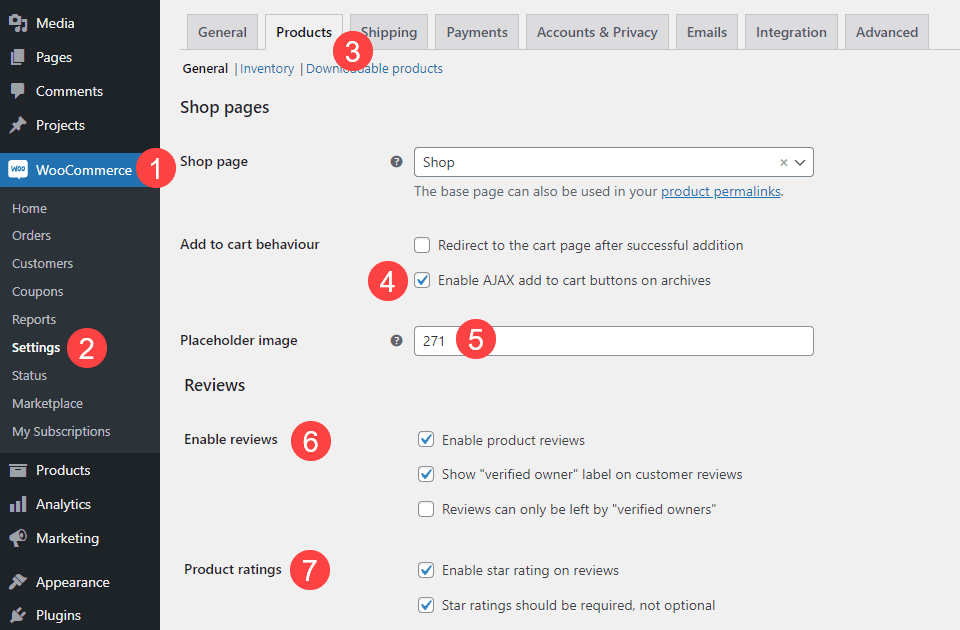
Verify These Settings
- Store currency
- Tax rules
- Shipping zones
- Payment gateways (test mode)
- Checkout pages
- Account pages
- Email templates
Small mismatches here can break checkout later.
Step 8: Payment Gateway Safety Setup
Never process live payments on staging.
Recommended Approach
- Enable sandbox/test mode
- Use test API keys
- Disable real webhooks temporarily
This prevents:
- Duplicate charges
- Failed transactions
- Payment reconciliation issues
Step 9: Full WooCommerce Functional Testing
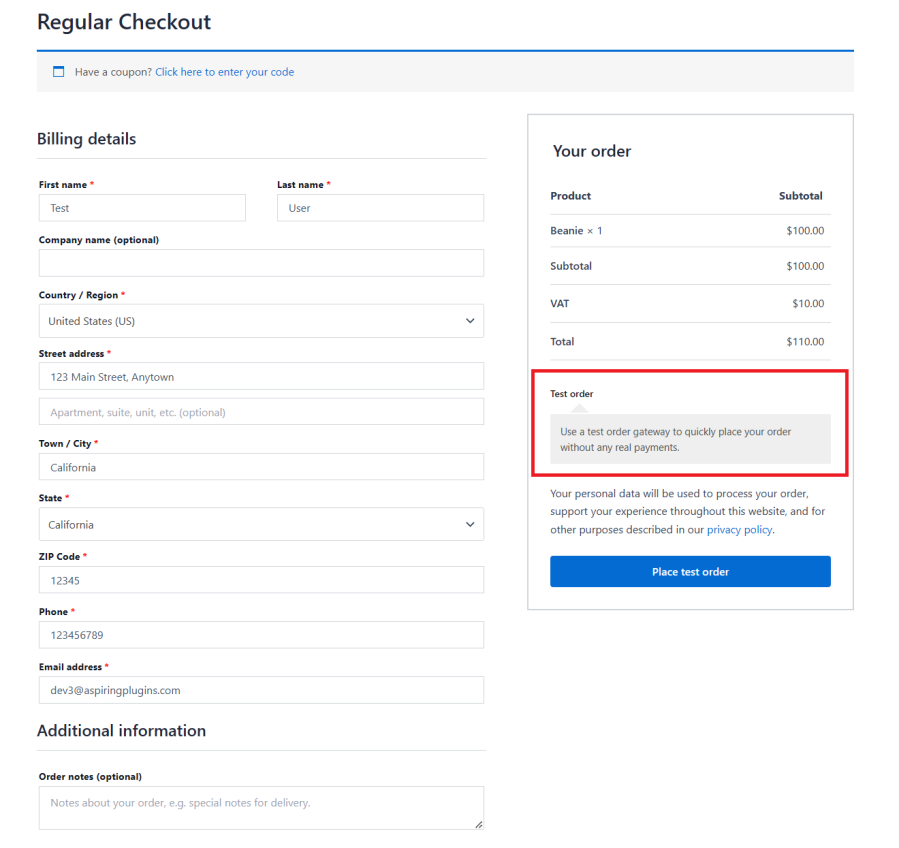


Test Checklist
✔ Add to cart
✔ Coupon application
✔ Tax calculation
✔ Shipping calculation
✔ Guest checkout
✔ Logged-in checkout
✔ Order confirmation page
✔ Order status update
✔ Admin order management
Only proceed when staging is 100% functional.
Step 10: Order Sync Strategy (MOST CRITICAL STEP)
Orders placed after initial migration must be synced.
Professional Sync Methods
- WP-CLI database export/import
- Incremental database sync
- Temporary checkout freeze (minutes only)
Best Practice
- Announce a short “order sync window”
- Pause checkout for 2–5 minutes
- Sync latest orders
- Resume checkout immediately
This avoids lost or duplicate orders.
Step 11: DNS TTL Reduction (Advance SEO & Safety Step)

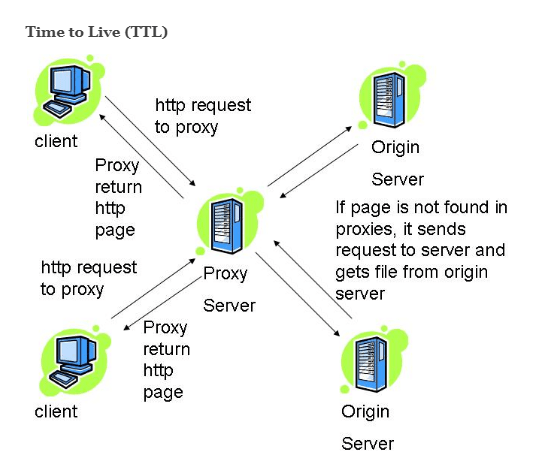
24 hours before migration:
- Reduce DNS TTL to 300 seconds
This allows:
- Faster propagation
- Quick rollback if needed
Step 12: Final Go-Live Execution (Zero Downtime)
Execution Steps
- Enable live payment keys on new store
- Final order sync
- Flush all caches
- Switch DNS to new server
- Monitor traffic & orders
Old store remains active during DNS propagation.
Step 13: Immediate Post-Migration Validation
Live Order Validation
✔ Place real test order
✔ Verify payment capture
✔ Confirm order email delivery
✔ Check order appears in admin
✔ Validate inventory deduction
This step confirms revenue flow is intact.
Step 14: Webhooks, Cron & Email Verification
Many WooCommerce features depend on background processes.
Verify
- Payment webhooks
- Order status updates
- Subscription renewals (if any)
- Email notifications
- Scheduled actions
Broken cron = silent order failures.
Step 15: SEO & Performance Validation

SEO Checks
- Noindex removed
- Sitemap submitted
- Canonicals correct
- Product URLs intact
Performance Checks
- Checkout speed
- Server response time
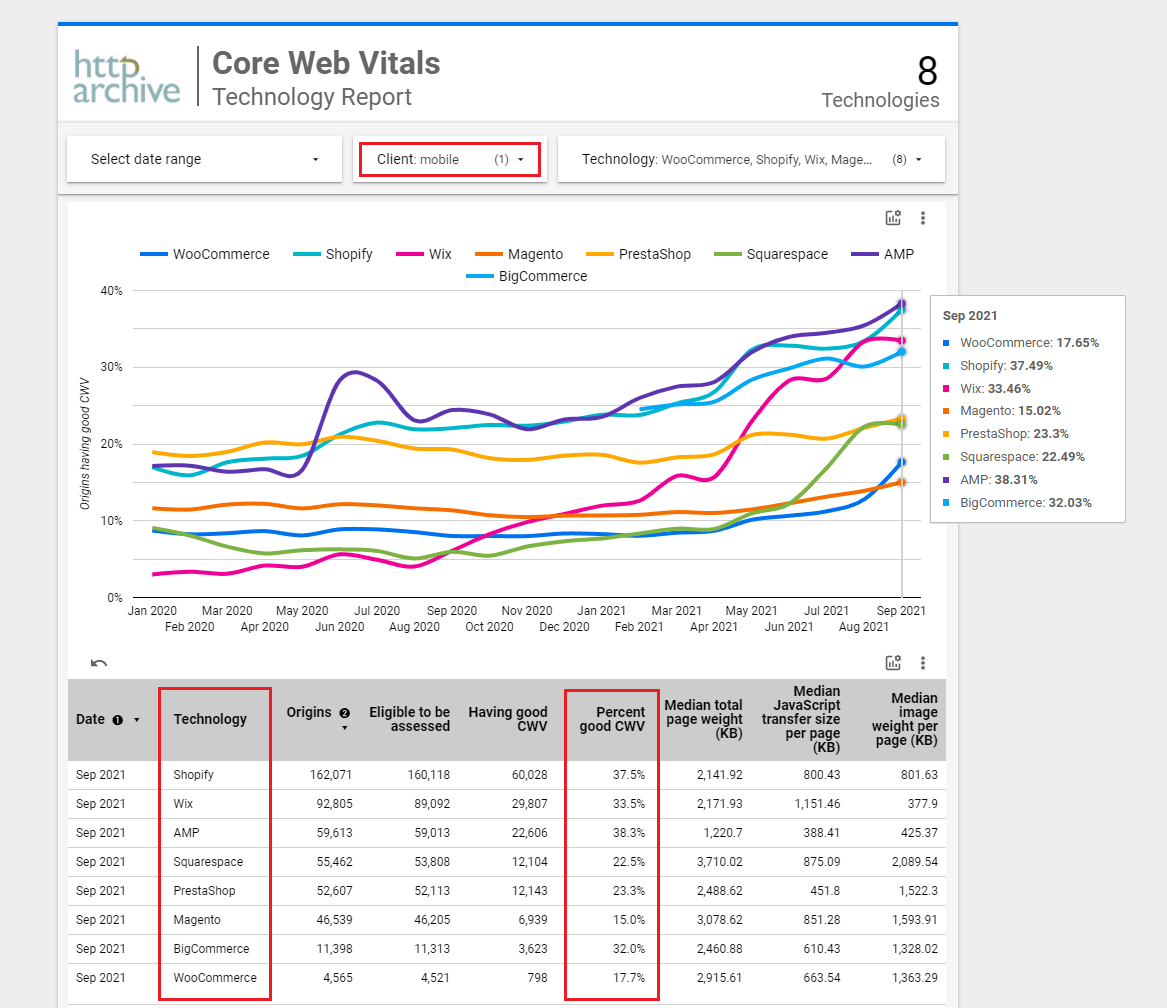
- Core Web Vitals
A successful migration often improves conversion rates.
Step 16: Monitor Orders for 72 Hours
Closely monitor:
- Order count vs previous average
- Payment success rate
- Failed checkout attempts
- Server logs
- Error notifications
Only after stability is confirmed should the old server be decommissioned.
Common WooCommerce Migration Mistakes
❌ Migrating without order sync
❌ Forgetting payment webhooks
❌ DNS switch during peak hours
❌ Cache enabled on checkout
❌ No rollback plan
In eCommerce, mistakes equal money.
When Professional WooCommerce Migration Is Mandatory
- High daily order volume
- Subscription-based stores
- Multi-currency or multi-store setups
- Custom checkout logic
- Revenue-critical businesses
DIY migration is risky in these cases.
How DEVEXIS INDIA Handles WooCommerce Migration
At DEVEXIS INDIA, WooCommerce migration is treated as a business-critical operation, not just a technical task:
- Order-safe migration planning
- Parallel environment setup
- Incremental order sync
- Zero-downtime DNS execution
- Payment & email validation
- Post-migration monitoring
Our objective is simple:
Not a single order lost. Not a single customer impacted.
Final WooCommerce Migration Checklist (Quick Reference)
✔ Staging tested
✔ Orders synced
✔ Payment gateways validated
✔ Webhooks active
✔ DNS switched safely
✔ Live orders verified
✔ Monitoring active
Conclusion
WooCommerce migration is not about moving files—it’s about protecting revenue, customers, and trust. With proper planning, synchronization, and testing, even busy online stores can migrate without downtime or order loss.
This guide gives you a professional-grade roadmap to migrate WooCommerce confidently and safely.
📞 Need WooCommerce Migration Without Losing Orders?
Let DEVEXIS INDIA handle your store migration—securely, smoothly, and revenue-safe.