
Introduction: Why Move WordPress from cPanel to Cloud?
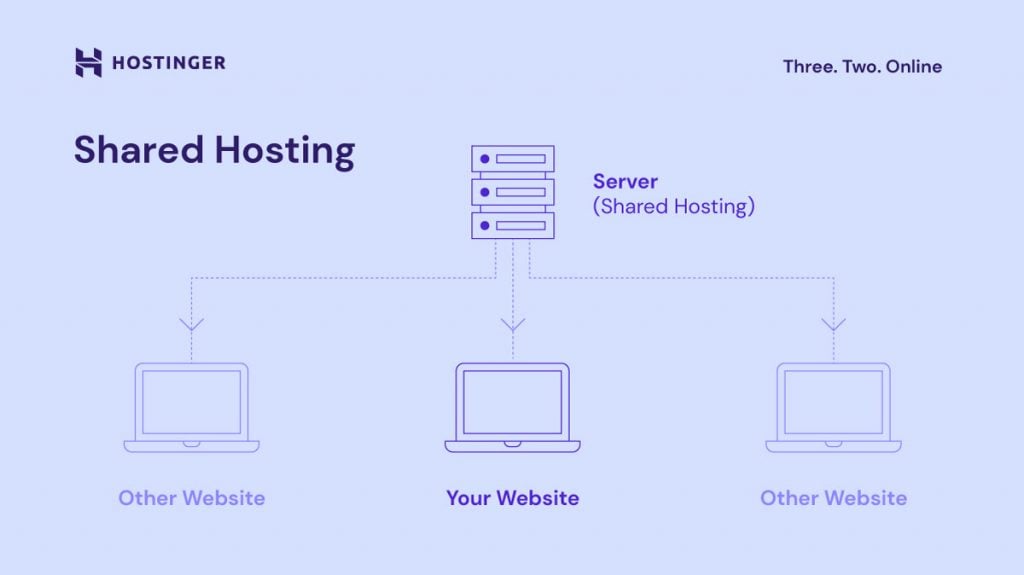
cPanel-based shared hosting has been the default choice for WordPress websites for years. While it is easy to use, it comes with serious limitations as your website grows.
Businesses typically migrate from cPanel to cloud infrastructure to achieve:
- Better performance and page speed
- Dedicated resources (CPU, RAM, storage)
- Improved uptime and reliability
- Higher security and isolation
- Scalability for future growth
- Lower long-term infrastructure risk
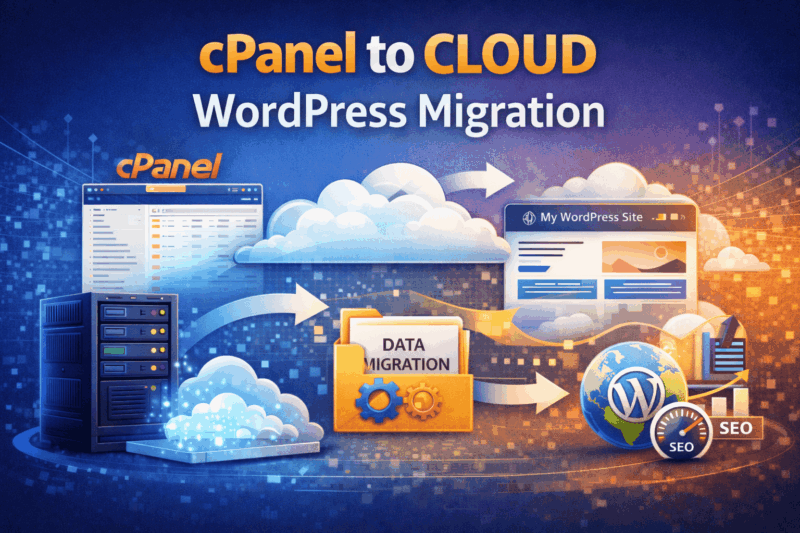
This guide explains exactly how to migrate a WordPress website from cPanel hosting to a cloud server—safely, securely, and with zero downtime.
What Does “cPanel to Cloud Migration” Mean?
A cPanel to cloud migration involves:
- Moving WordPress files from a cPanel server
- Migrating the MySQL database
- Reconfiguring WordPress to work without cPanel
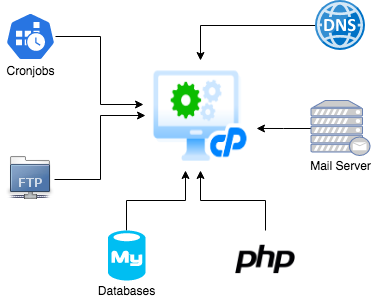
- Setting up DNS, SSL, email, and security manually
- Deploying WordPress on a VPS or cloud instance
Unlike cPanel hosting, cloud servers do not provide a GUI by default—everything is controlled via server configuration.
Why cPanel Hosting Becomes a Bottleneck
Limitations of cPanel Hosting
- Shared CPU & RAM
- Performance throttling
- Limited PHP customization
- No root access
- Poor handling of traffic spikes
- Security risks from neighboring accounts
Advantages of Cloud Hosting
- Dedicated resources
- Root access & full control
- Custom server stack (Nginx, Apache, PHP-FPM)
- Horizontal & vertical scaling
- Better monitoring & logging
For serious WordPress sites, cloud is not optional—it’s inevitable.
Migration Overview: Professional Architecture

Migration Flow:
cPanel Server → Cloud VPS (Staging) → Testing → DNS Switch → Monitoring
This layered approach ensures safety and rollback capability.
Step 1: Pre-Migration Audit (Mandatory)
Before migration, perform a full technical audit.
Audit Checklist
- WordPress version
- Active theme & child theme
- Plugin list
- PHP version used in cPanel
- Database size
- Media library size
- Cron jobs
- Email accounts
- DNS records
- SSL status
This audit becomes your migration reference sheet.
Step 2: Choose the Right Cloud Server
Recommended Cloud Configuration (Baseline)
- CPU: 2 vCPU minimum
- RAM: 2–4 GB
- Storage: SSD (≥ 40 GB)
- OS: Ubuntu LTS
- Web server: Nginx or Apache
- Database: MySQL / MariaDB
- PHP: Same or higher version than cPanel
Common Cloud Use Cases
- VPS for medium traffic sites
- Scalable cloud instances for high traffic
- Managed cloud for non-technical teams
Step 3: Prepare the Cloud Server (No cPanel)
Unlike shared hosting, you must prepare everything manually.
Server Setup Checklist
- Update OS packages
- Configure firewall
- Install web server
- Install PHP & extensions
- Install database server
- Set file permissions
- Enable SSH access
- Configure swap (optional but recommended)
At this stage, the cloud server should be production-ready.
Step 4: Create a WordPress Staging Environment


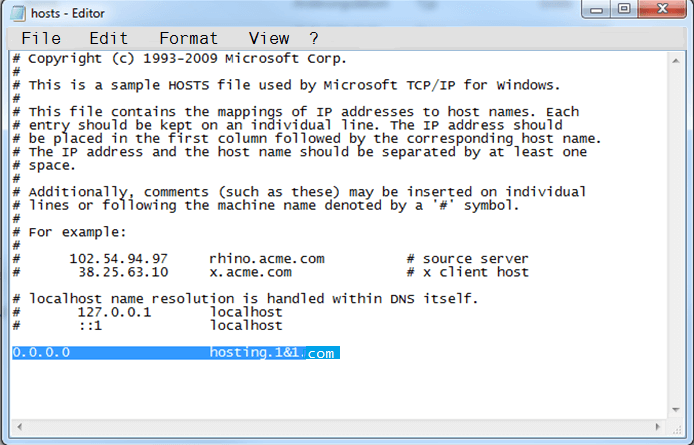
Never migrate directly to production DNS.
Staging Options
- Temporary subdomain
- IP-based URL
- Hosts file mapping (best)
Staging allows safe testing without affecting live users.
Step 5: Export WordPress Files from cPanel
Files to Export
wp-contentdirectory.htaccesswp-config.php(for reference)
Export Methods
- cPanel File Manager
- FTP/SFTP
- Full home directory archive
Avoid exporting cache folders initially.
Step 6: Import WordPress Files to Cloud Server
Recommended Methods
- SCP (secure & fast)
- Rsync (best for large sites)
- SFTP (small sites)
Best Practices
- Maintain directory structure
- Set correct ownership
- Verify file permissions
- Ensure hidden files are copied
Step 7: Database Migration from cPanel to Cloud
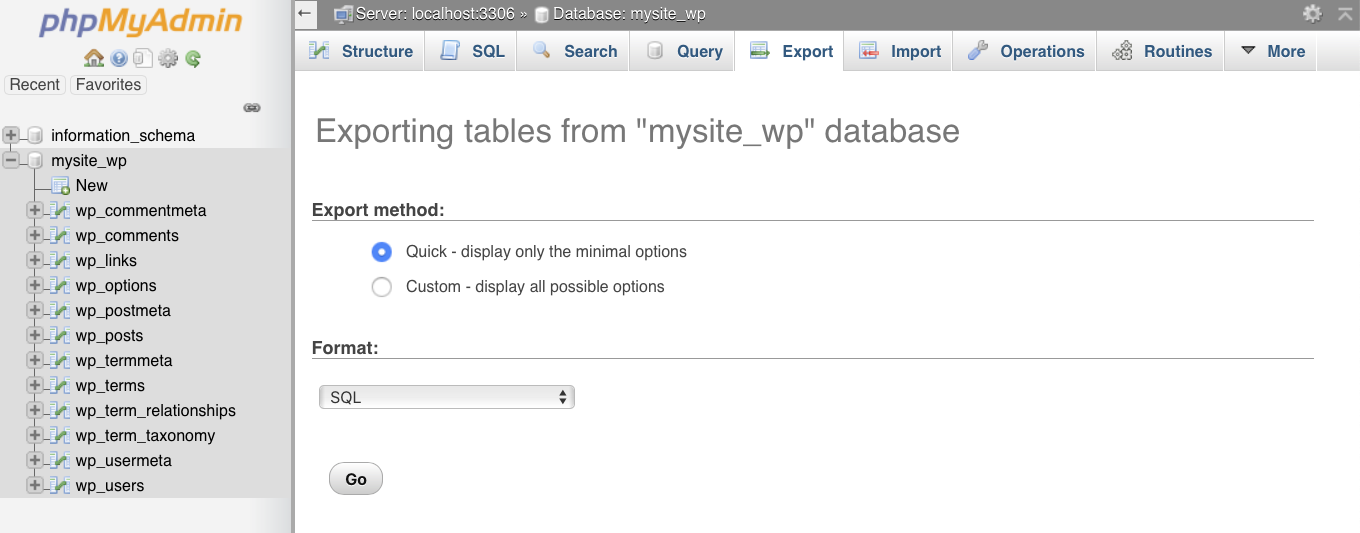
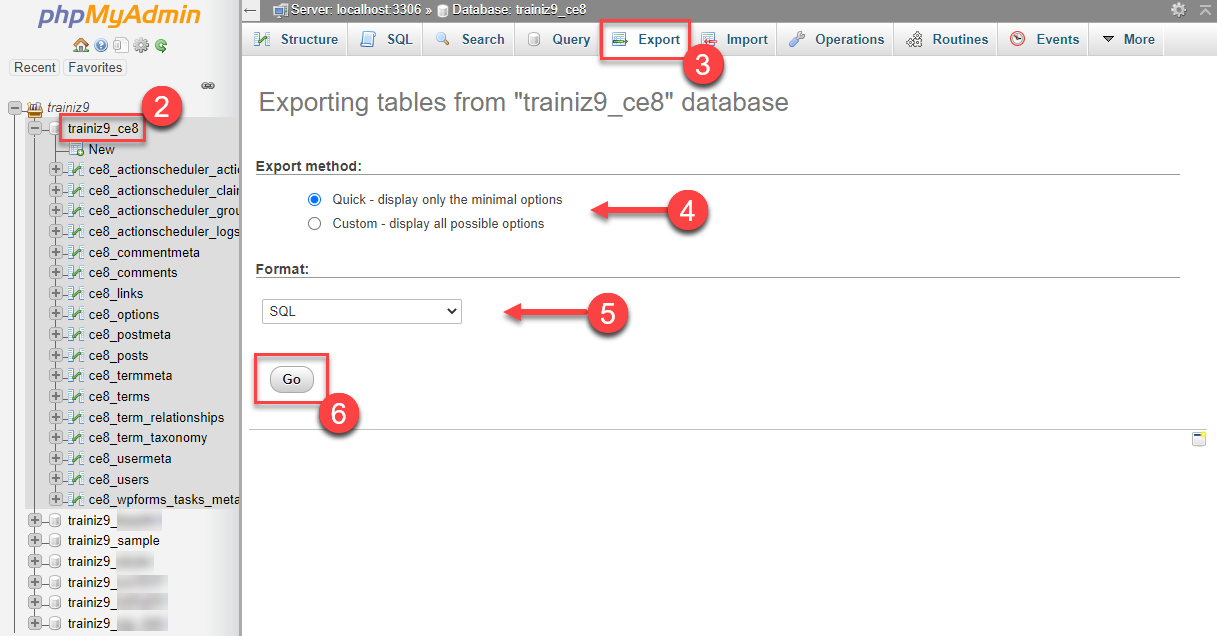
Database Export (cPanel)
- Use phpMyAdmin
- Export as SQL
- Use compression for large databases
Database Import (Cloud)
- Create database & user
- Import SQL file
- Assign privileges
- Verify character set
Step 8: Update wp-config.php for Cloud Environment
Update:
- Database name
- Database user
- Database password
- Database host
- Authentication salts (recommended)
Check file paths and memory limits.
Step 9: Fix URLs & Paths (Critical)
If testing on staging:
- Do not change live URLs yet
- Use hosts file mapping
- Avoid hard-coded domain changes
Use WP-CLI for safe search-replace when required.
Step 10: Configure Web Server & Permalinks
Apache
- Enable rewrite module
- Verify
.htaccess
Nginx
- Configure WordPress rewrite rules
- Enable PHP-FPM
Then:
- Go to WordPress → Settings → Permalinks
- Save without changes
This prevents silent 404 errors.
Step 11: Email Migration (Often Ignored)
cPanel email does not automatically move.
Options
- Move emails to third-party provider
- Recreate mailboxes on cloud server
- Migrate via IMAP sync
Update MX, SPF, DKIM, DMARC records carefully.
Step 12: SSL & Security Configuration
SSL Setup
- Install Let’s Encrypt or custom SSL
- Force HTTPS
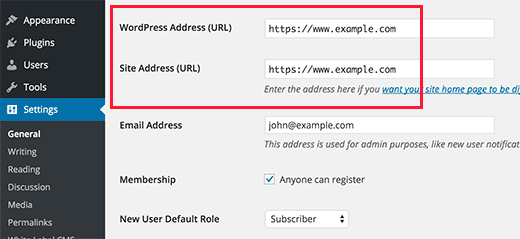
- Update WordPress URLs if needed
Security Hardening
- Disable XML-RPC (if not needed)
- Secure wp-admin
- Enable firewall rules
- Install security plugins (optional)
Step 13: Performance Optimization (Cloud Advantage)
Cloud migration is the perfect time to optimize.
Recommended Optimizations
- Enable server-level caching
- Use object caching
- Optimize PHP-FPM
- Enable GZIP/Brotli
- Image optimization
- CDN integration
Most sites see 30–60% speed improvement after cloud migration.
Step 14: DNS Switch (Zero Downtime)
Best DNS Strategy
- Lower TTL 24 hours before
- Switch during low traffic hours
- Keep cPanel server live
- Monitor propagation
Cloud server should already be tested and ready.
Step 15: Post-Migration Validation
Functional Checks
✔ Website loads globally
✔ Admin panel works
✔ Forms submit
✔ Emails deliver
✔ SSL secure
SEO Checks
✔ Noindex removed
✔ Sitemap submitted
✔ Search Console clean
Step 16: Monitor for 72 Hours
Watch:
- Server load
- Error logs
- Traffic behavior
- Email delivery
- Search rankings
Only decommission cPanel after stability is confirmed.
Common cPanel to Cloud Migration Mistakes
❌ Migrating without staging
❌ PHP version mismatch
❌ Forgetting email migration
❌ Incorrect file permissions
❌ Deleting cPanel too early
Professional migrations are predictable and boring—that’s a good thing.
When cPanel to Cloud Migration Is Essential
- Business-critical websites
- High-traffic WordPress sites
- WooCommerce stores
- SEO-driven platforms
- Performance-sensitive applications
How DEVEXIS INDIA Handles cPanel to Cloud Migration
At DEVEXIS INDIA, we follow a production-grade migration framework:
- Pre-migration audit
- Cloud server hardening
- Staging-based migration
- Zero-downtime DNS strategy
- SEO & email continuity
- Post-migration monitoring
Our goal is not just migration—it’s future-ready infrastructure.
Final cPanel to Cloud Migration Checklist
✔ Cloud server prepared
✔ Files migrated
✔ Database connected
✔ Emails reconfigured
✔ SSL enabled
✔ Performance optimized
✔ DNS switched safely
✔ Monitoring active
Conclusion
Migrating WordPress from cPanel to cloud is a strategic upgrade, not just a hosting change. When done correctly, it unlocks performance, security, and scalability benefits that shared hosting simply cannot provide.
This guide gives you a complete, professional roadmap to execute cPanel to cloud WordPress migration confidently and safely.
📞 Need Help with cPanel to Cloud WordPress Migration?
Let DEVEXIS INDIA handle it for you—securely, scalably, and without downtime.