
Introduction: Why Performance Is Revenue in WooCommerce
In WooCommerce, performance is not a vanity metric—it’s a business KPI.
Even small delays can have outsized impact:
- +1 second load time → measurable drop in conversions
- Slow checkout → cart abandonment
- High server response time → poor Core Web Vitals
- Traffic spikes → server overload and lost orders
Cloud hosting gives you power and flexibility, but WooCommerce does not become fast automatically on cloud. Performance requires intentional optimization across server, application, database, and frontend layers.
This guide explains exactly how to optimize WooCommerce performance on cloud infrastructure, using production-grade techniques.
How WooCommerce Performance Works (Big Picture)
WooCommerce performance is influenced by four layers:
- Infrastructure layer – CPU, RAM, storage, network
- Server stack – Web server, PHP, database, caching
- Application layer – WooCommerce, plugins, queries
- Frontend layer – Theme, assets, images, JS/CSS
True optimization requires alignment across all four layers.
Cloud vs Shared Hosting: Why Optimization Is Different
On Shared Hosting
- Limited resources
- Aggressive throttling
- Minimal tuning control
On Cloud Hosting
- Dedicated resources
- Root-level control
- Horizontal & vertical scaling
- Advanced caching options
Cloud enables performance—but only if configured correctly.
Step 1: Choose the Right Cloud Architecture for WooCommerce


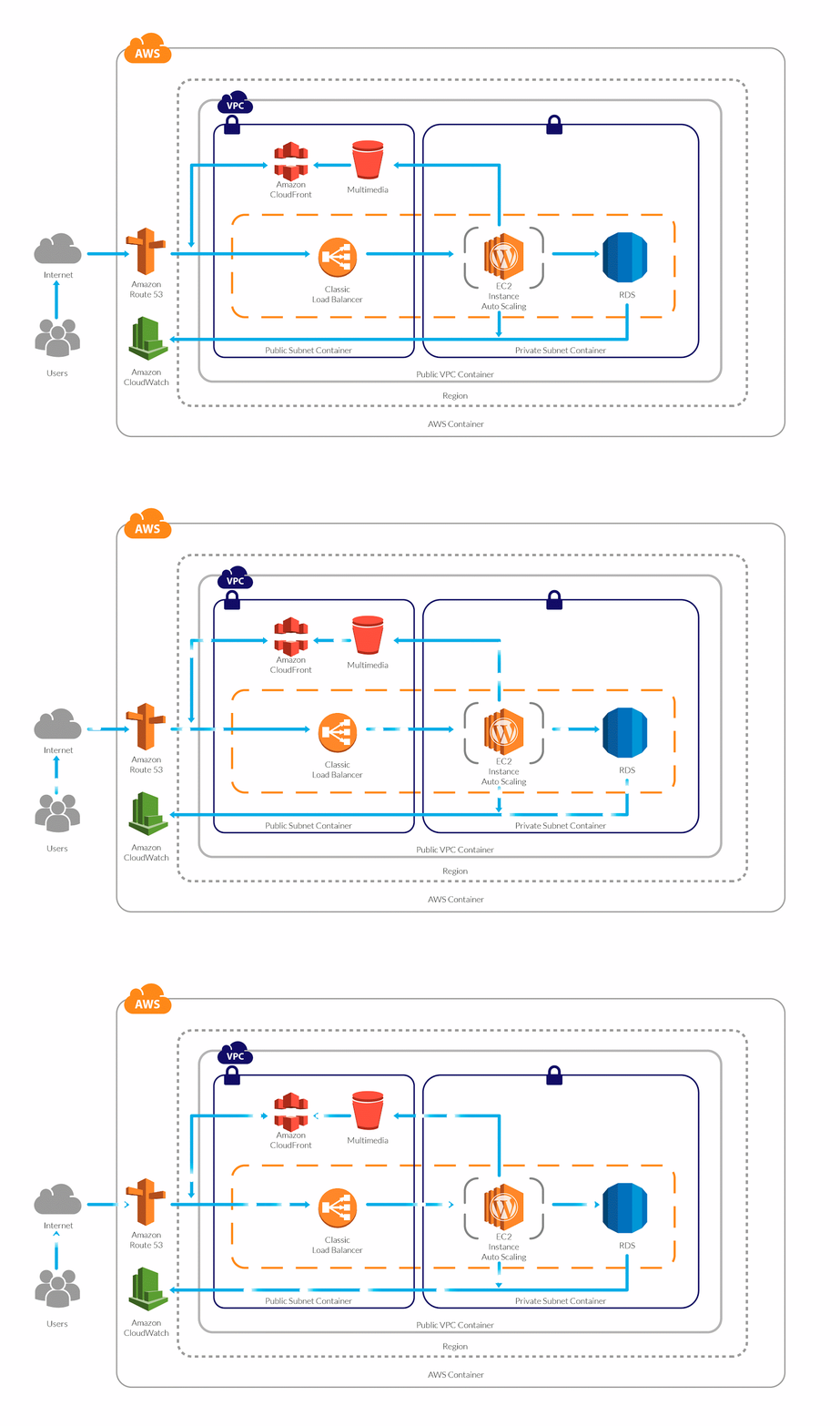
Recommended Baseline (Single Store)
- 2–4 vCPU
- 4–8 GB RAM
- SSD / NVMe storage
- Ubuntu LTS
- Nginx or Apache + PHP-FPM
- MySQL / MariaDB
For High Traffic Stores
- Separate database server
- Redis object cache
- CDN for static assets
- Load balancer (optional)
Underpowered servers negate all other optimizations.
Step 2: Optimize Web Server Configuration
Nginx vs Apache
- Nginx → better for high concurrency
- Apache → easier compatibility
For WooCommerce on cloud, Nginx + PHP-FPM is often preferred.
Key Web Server Tweaks
- Enable GZIP/Brotli compression
- Increase worker processes
- Optimize keep-alive settings
- Disable unnecessary modules
These changes reduce server response time significantly.
Step 3: PHP Optimization for WooCommerce
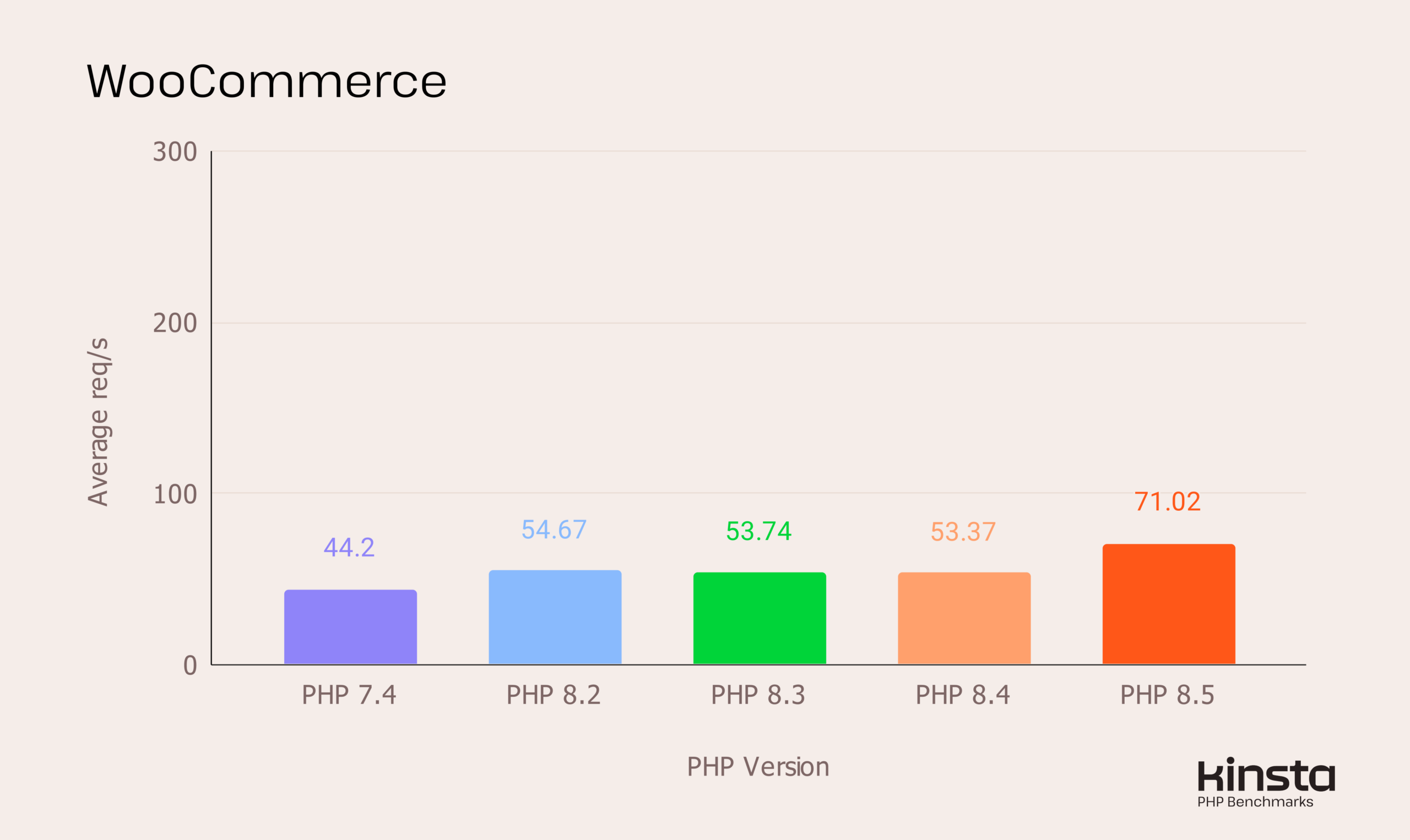
PHP Version
- Use PHP 8.x (as compatible with your plugins)
- Avoid outdated PHP versions
PHP-FPM Settings
- Increase memory_limit (256–512MB)
- Tune max_children
- Adjust request timeout
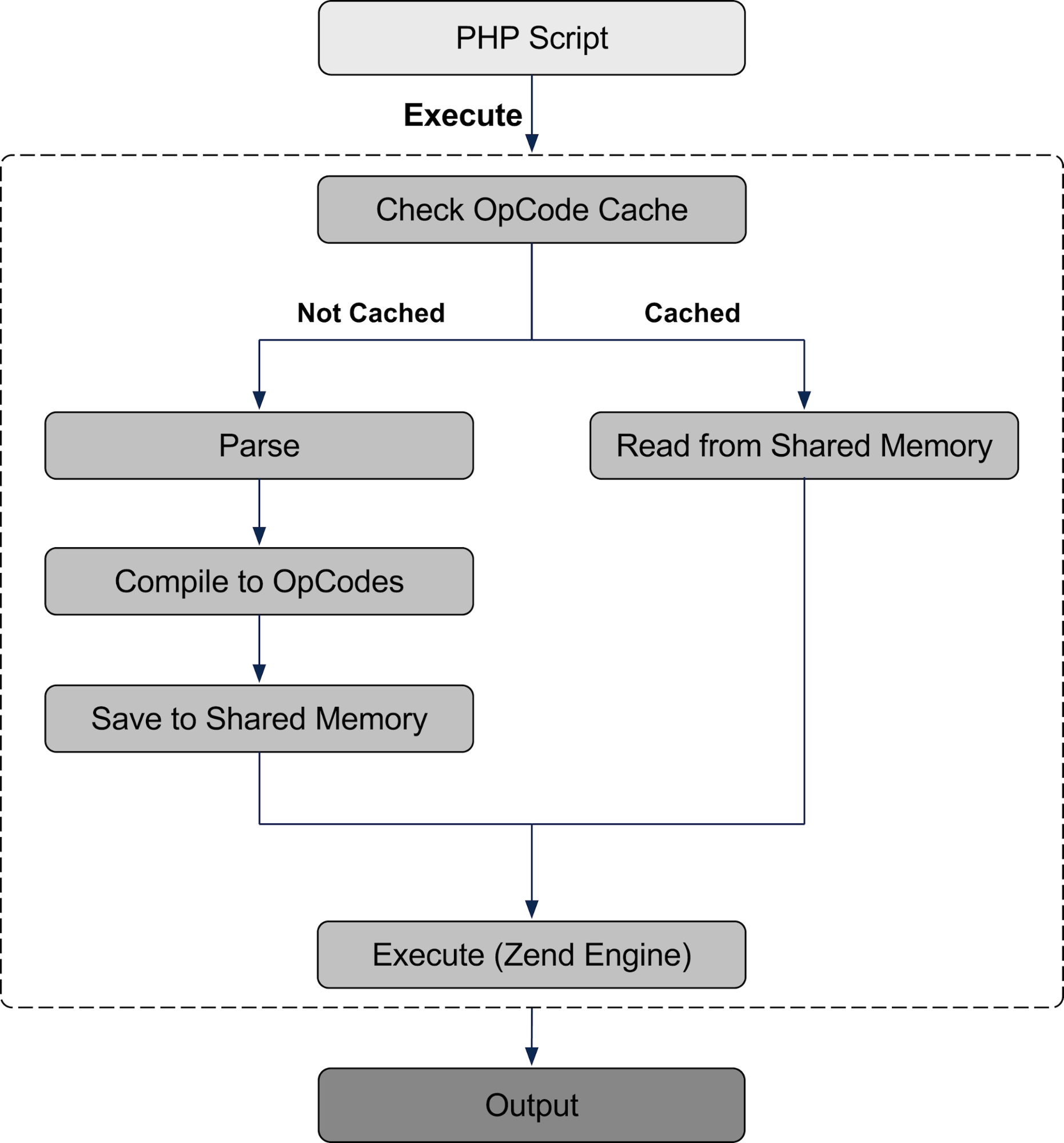
- Enable OPcache
OPcache Must-Haves
- opcache.enable = 1
- opcache.memory_consumption ≥ 128MB
- opcache.validate_timestamps = 1
PHP optimization alone can yield 20–40% performance improvement.
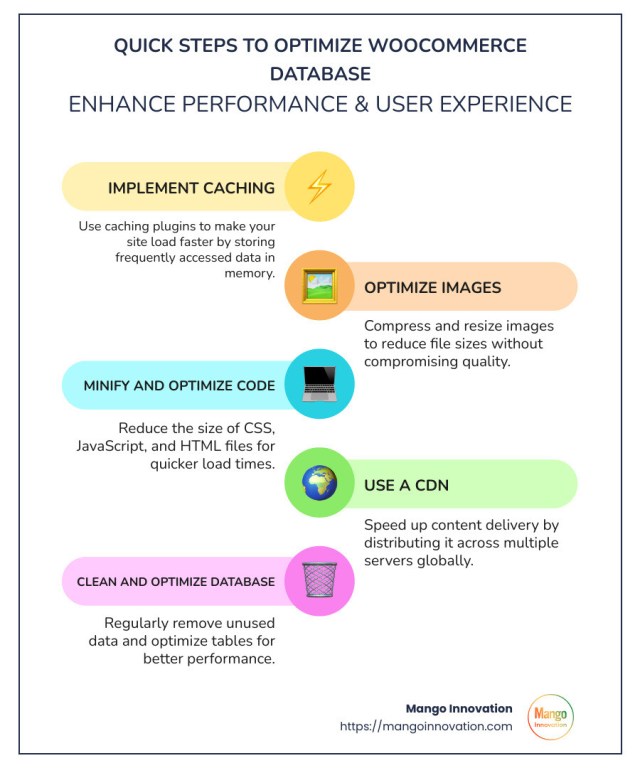
Step 4: Database Optimization (WooCommerce Bottleneck)
WooCommerce is database-heavy.

Database Best Practices
- Use MariaDB or optimized MySQL
- Enable query cache (if applicable)
- Increase buffer pool size
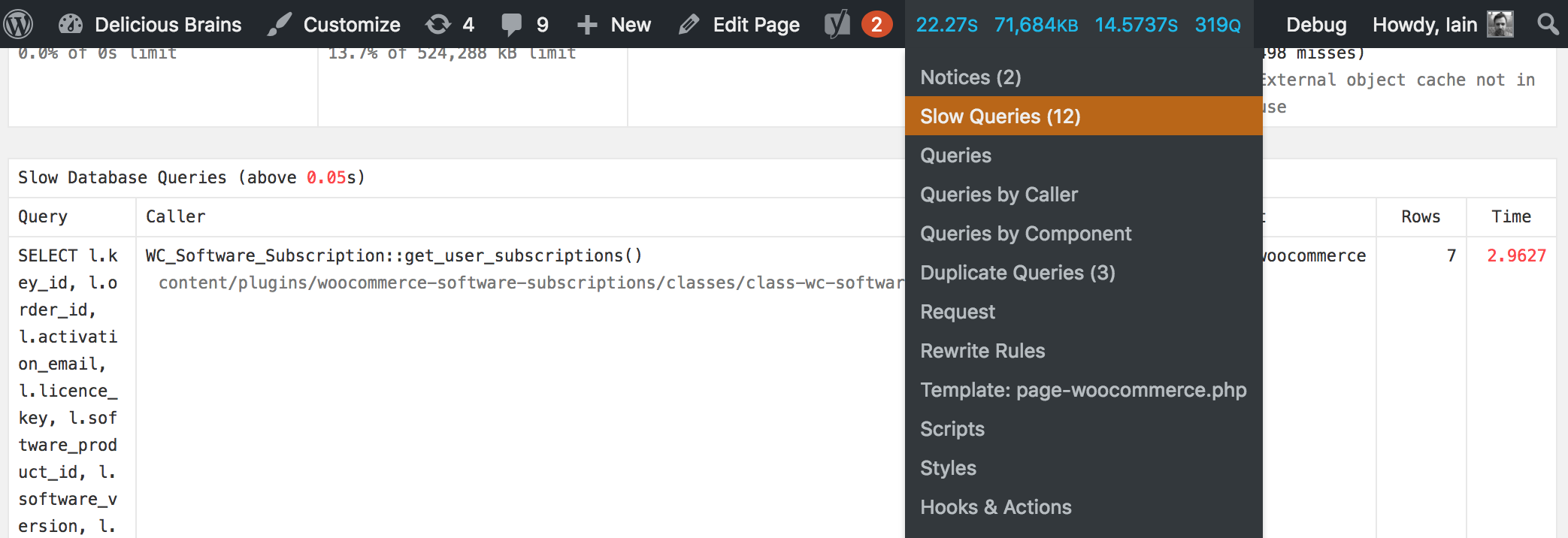
- Optimize slow queries
- Index frequently queried columns
Clean Up WooCommerce Data
- Remove expired transients
- Clean old sessions
- Delete unused revisions
- Clear abandoned carts
A bloated database silently kills performance.
Step 5: Object Caching with Redis (Game Changer)
Object caching is mandatory for serious WooCommerce stores.
Why Redis?
- Stores database query results in memory
- Reduces repeated queries
- Improves cart & product load times
What to Cache
- Product queries
- User sessions
- Cart fragments (carefully)
What NOT to Cache
- Checkout pages
- Cart pages
- Account pages
Correct Redis setup dramatically improves scalability.
Step 6: Page Caching (Selective & Smart)
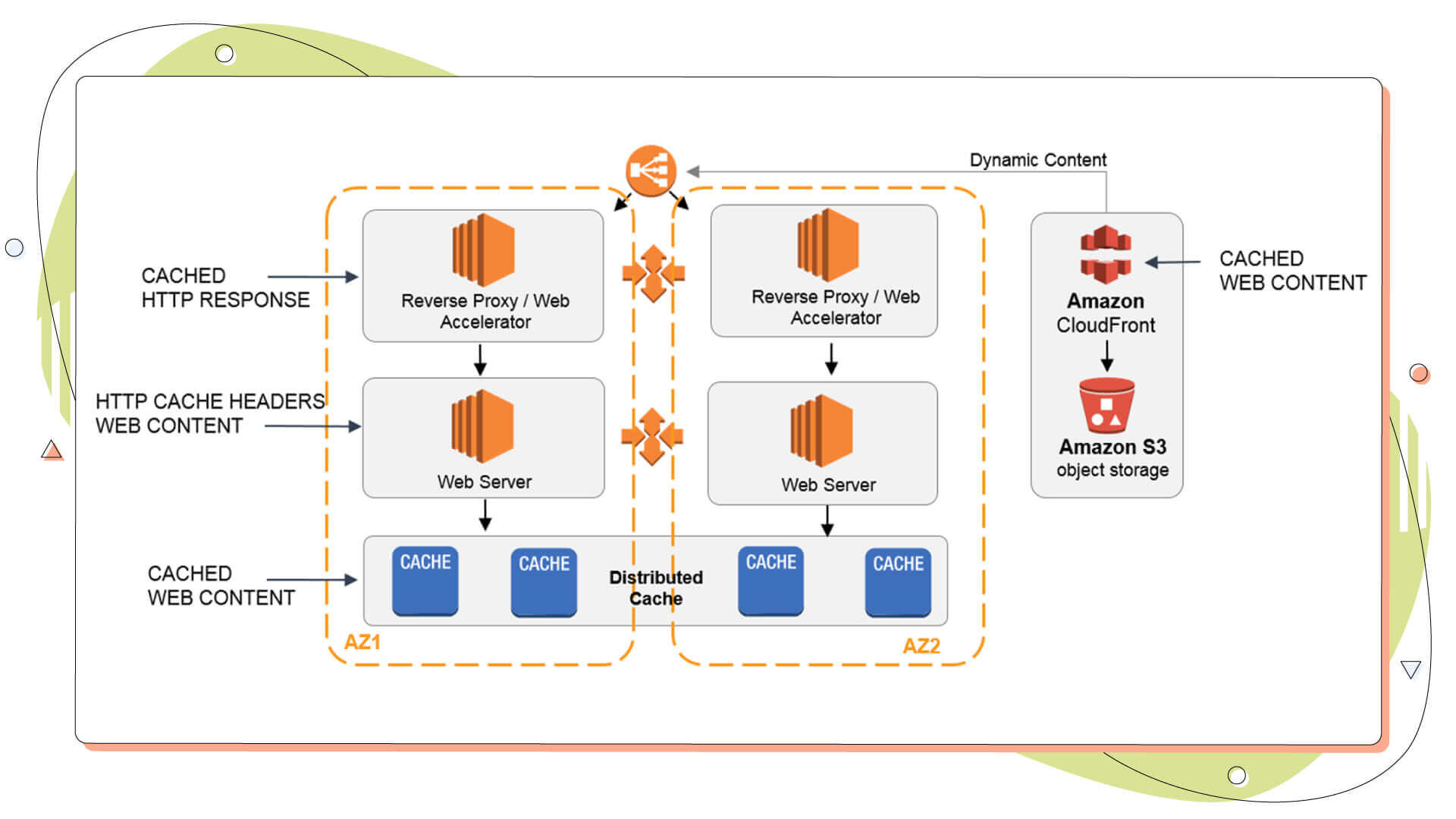

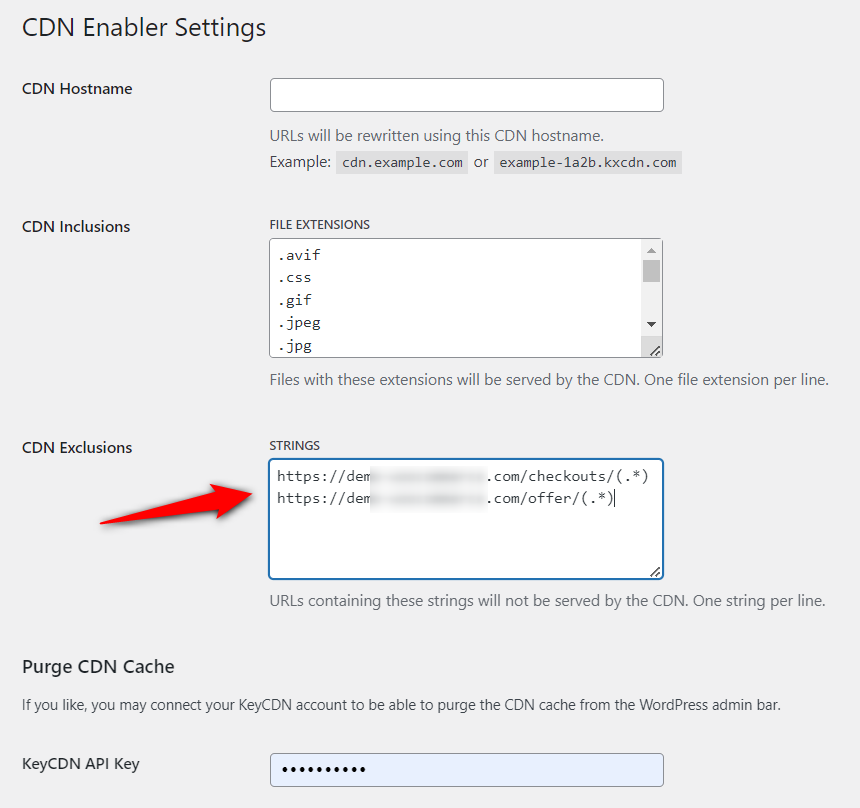
Safe to Cache
- Homepage
- Category pages
- Product pages
- Blog content
Never Cache
- Cart
- Checkout
- My Account
- Order confirmation
Cache Tools
- Server-level FastCGI cache
- WP Rocket / W3 Total Cache (advanced config)
Wrong caching breaks checkout—configure carefully.
Step 7: WooCommerce-Specific Optimizations
Disable Unused WooCommerce Features
- Reviews (if unused)
- Geolocation (if unnecessary)
- Legacy REST endpoints
Optimize Cart Fragments
- Disable AJAX cart fragments if possible
- Replace with JS-based updates
Reduce Admin-Ajax Load
- Limit heartbeat frequency
- Disable unnecessary background calls
These changes reduce server CPU spikes.
Step 8: Theme & Frontend Optimization

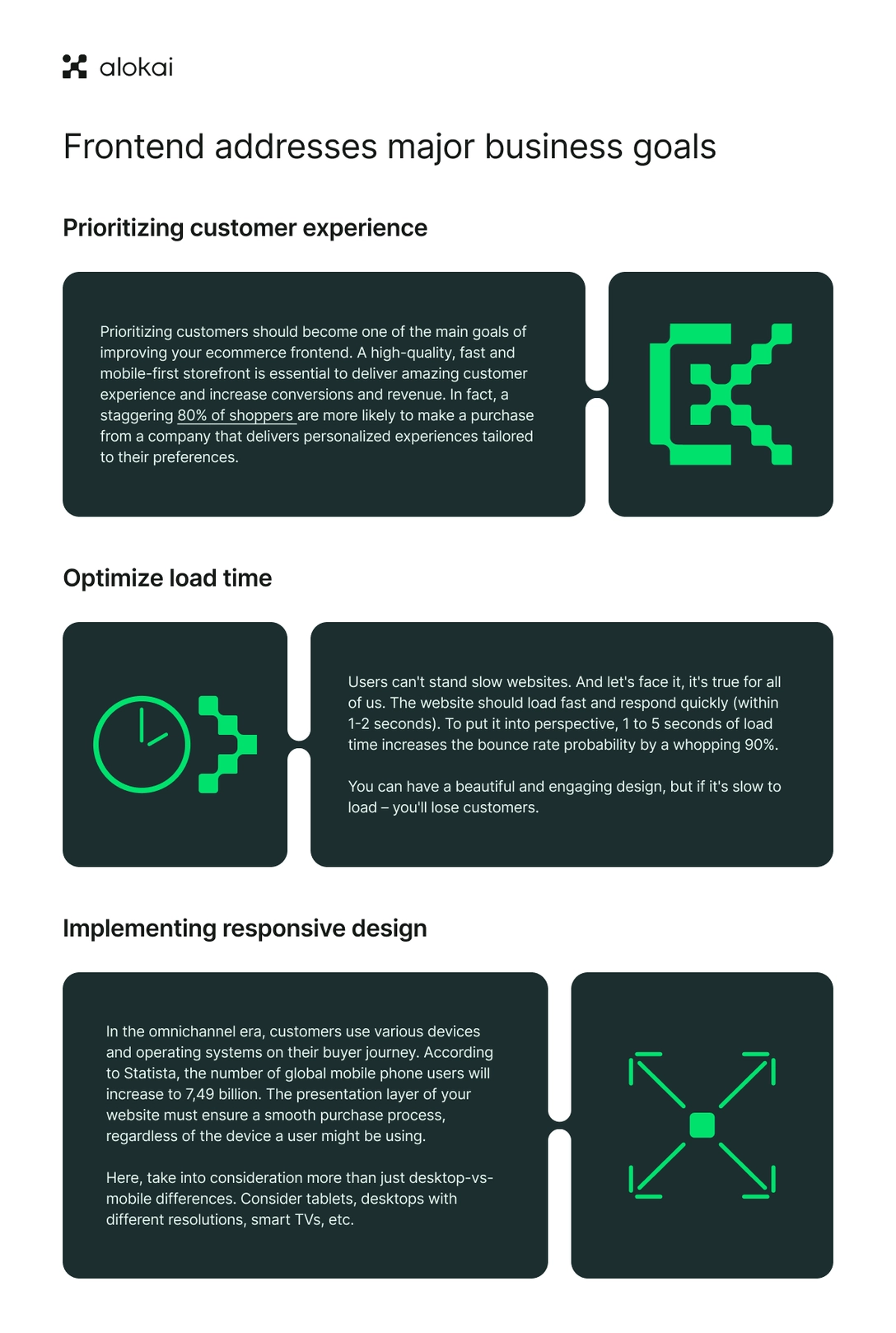
Theme Best Practices
- Lightweight theme
- Minimal JS dependencies
- No page builder overload
- Optimized templates
Asset Optimization
- Defer non-critical JS
- Minify CSS & JS
- Remove unused CSS
- Combine assets carefully
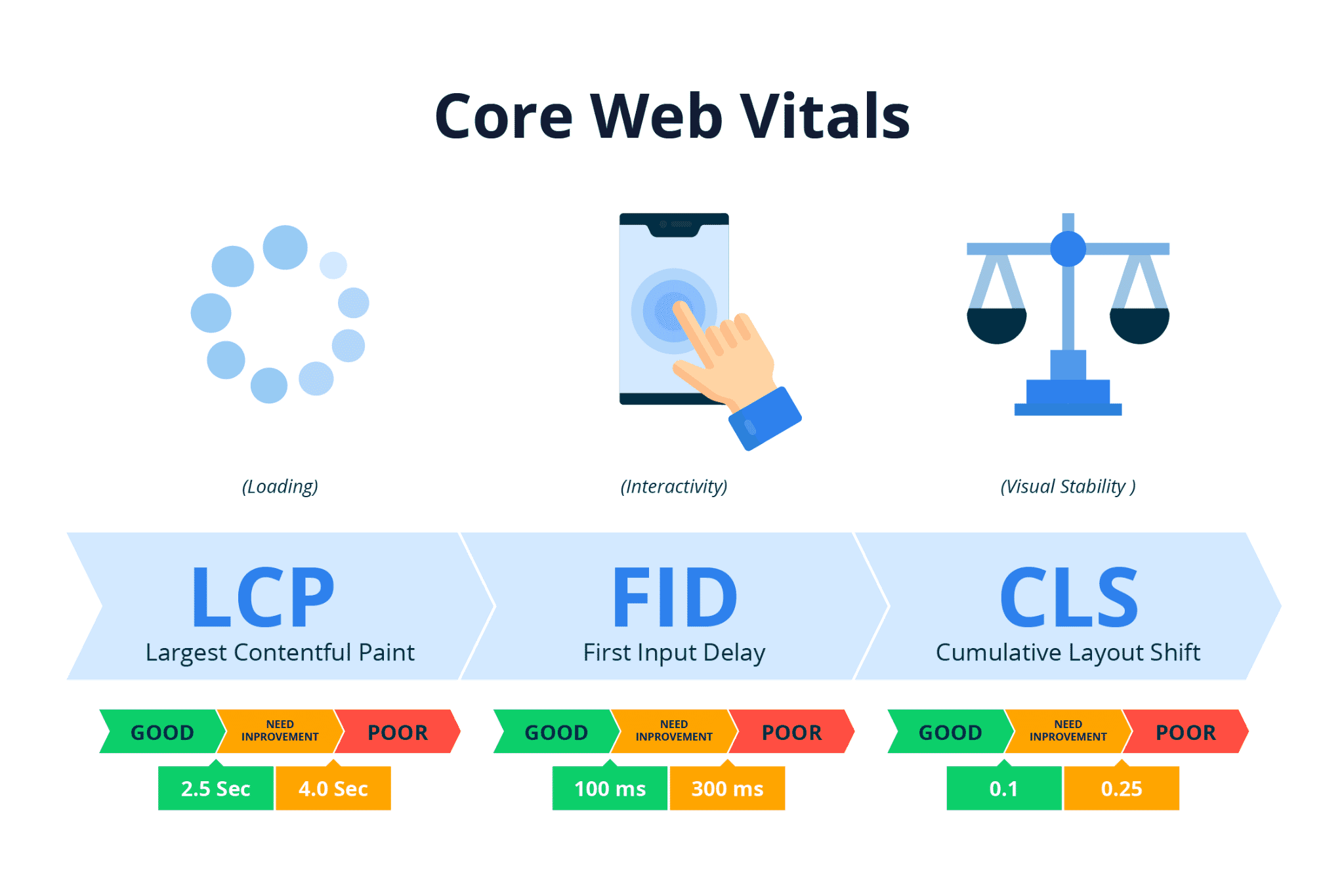
Frontend optimization improves Core Web Vitals.
Step 9: Image & Media Optimization
WooCommerce stores are image-heavy.
Image Best Practices
- Use WebP format
- Serve responsive images
- Lazy load below the fold
- Compress without quality loss
Media Delivery
- Offload media to CDN
- Avoid serving large images from origin server
Images often account for 50%+ page weight.
Step 10: CDN Integration (Performance Multiplier)


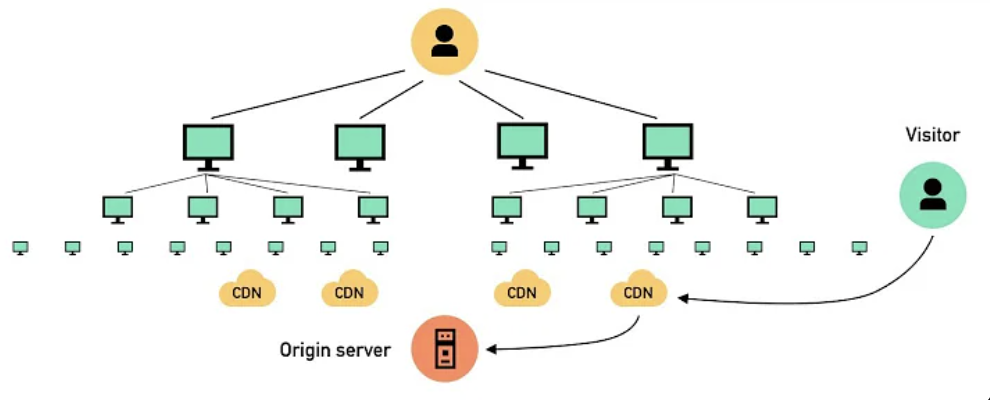
CDN Benefits
- Faster global delivery
- Reduced server load
- Better TTFB for distant users
What to Serve via CDN
- Images
- CSS & JS
- Fonts
- Static assets
Ensure CDN does not cache dynamic WooCommerce pages.
Step 11: Checkout & Payment Performance
Checkout speed directly affects revenue.
Optimize Checkout
- Reduce checkout fields
- Use optimized payment gateways
- Avoid heavy scripts on checkout
- Disable unnecessary plugins on checkout pages
Every extra second here costs money.
Step 12: Core Web Vitals Optimization

Key Metrics
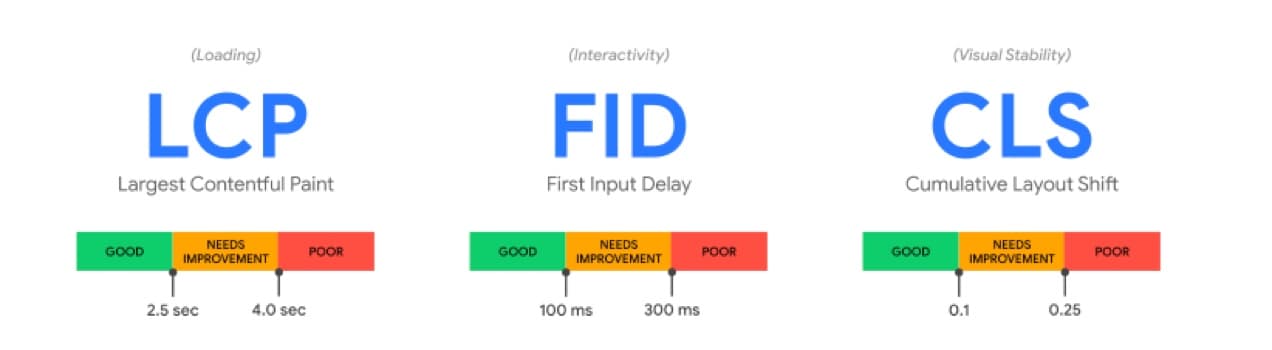
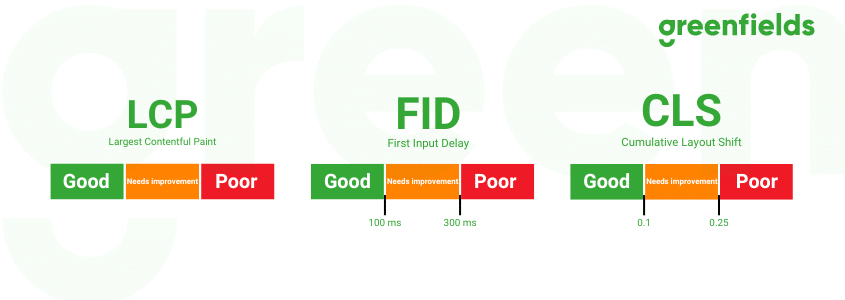
- LCP: Optimize hero images & server response
- CLS: Fix layout shifts (images, fonts)
- INP/FID: Reduce JS execution time
Google increasingly favors fast eCommerce experiences.
Step 13: Monitoring & Load Testing
Optimization without monitoring is guesswork.
Monitor
- CPU & RAM usage
- Database load
- PHP errors
- Slow queries
- Traffic spikes
Load Testing
- Simulate peak traffic
- Test checkout under load
- Validate server stability
Cloud allows scaling—but only if you plan for it.
Common WooCommerce Performance Mistakes
❌ Over-caching checkout
❌ Ignoring database tuning
❌ Plugin overload
❌ Weak server configuration
❌ No monitoring
Performance problems usually stack—not appear suddenly.
When Performance Optimization Is Mission-Critical
- High-traffic stores
- Flash sales
- Seasonal spikes
- Subscription-based stores
- Paid-ads-driven traffic
For these, optimization is not optional.
How DEVEXIS INDIA Optimizes WooCommerce on Cloud
At DEVEXIS INDIA, WooCommerce performance optimization is a full-stack process:
- Infrastructure right-sizing
- Server-level caching & tuning
- Database optimization
- WooCommerce-specific adjustments
- Frontend & Core Web Vitals tuning
- Monitoring & scaling strategy
Our goal:
Faster pages, smoother checkout, higher conversions.
Final WooCommerce Performance Checklist
✔ Cloud server optimized
✔ PHP & database tuned
✔ Object caching enabled
✔ Page caching configured safely
✔ CDN integrated
✔ Checkout optimized
✔ Core Web Vitals improved
✔ Monitoring active
Conclusion
WooCommerce performance on cloud is not achieved by a single plugin or tweak—it’s the result of systematic optimization across the entire stack. When done correctly, cloud-optimized WooCommerce stores are faster, more reliable, and more profitable.
This guide gives you a production-ready roadmap to unlock that performance.
📞 Need WooCommerce Performance Optimization on Cloud?
Let DEVEXIS INDIA optimize your store for speed, scale, and conversions.